Claim and Customize Your Desk
Last updated: May 22, 2026
Your desk in Gather is your home base in the virtual office. It’s a place to put your head down and get work done or to chat with your coworkers about projects.
Most importantly, your desk is where coworkers will look for you when they want to chat. Being at or away from your desk communicates your availability, and it's also the perfect place to show off your personality at work.
This guide will cover how to claim, customize, and use your desk in Gather 1.0.
These desk features are only available in Gather 1.0 Remote Work Offices. They are not currently supported in Gather 1.0 Event Spaces.
Overview
Claim Your Desk
To claim a desk, hover over an empty desk area and click Claim.
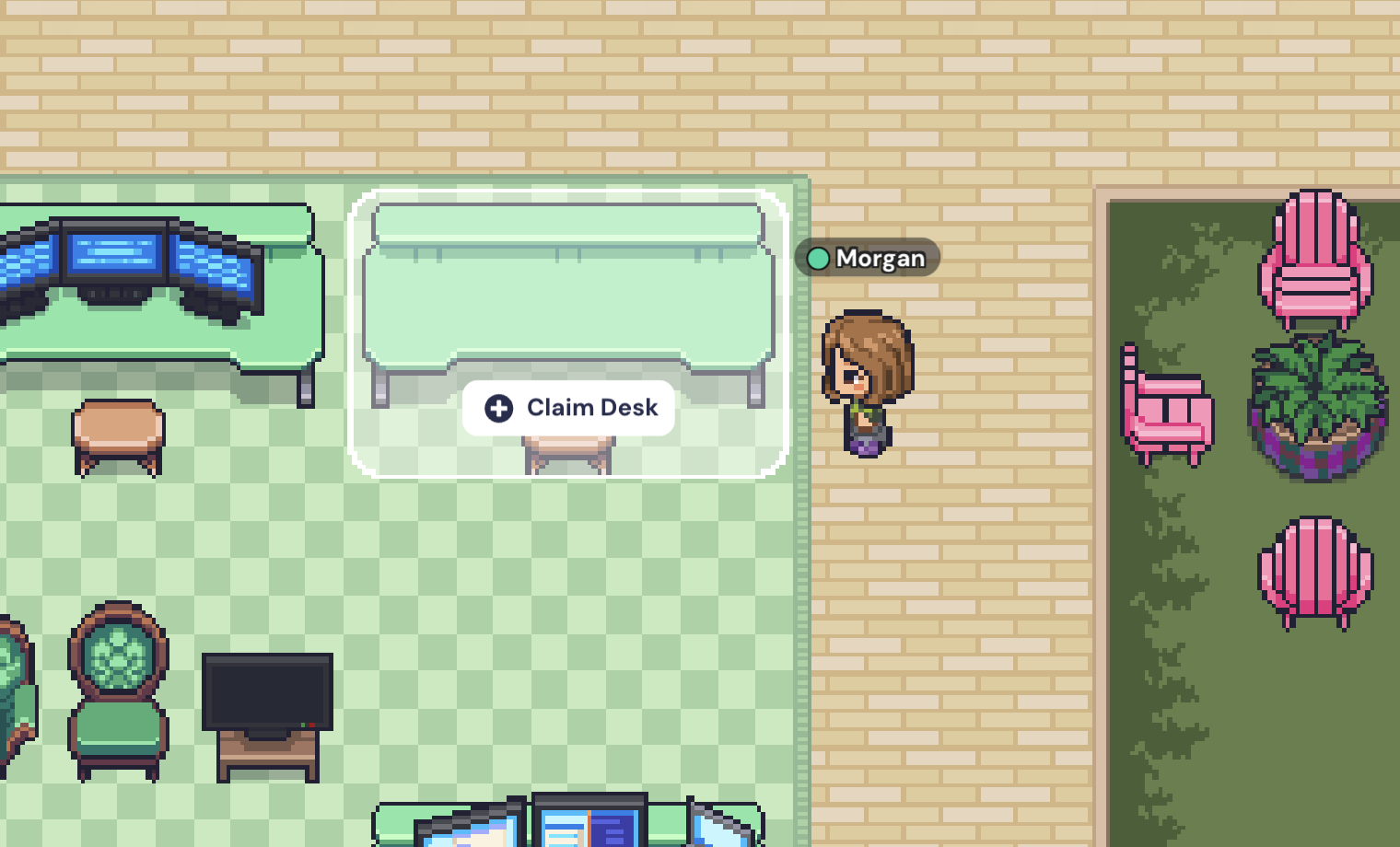
When you were invited into your office, you may have been assigned a desk already by one of your teammates. You’ll see a message to help guide you to the right desk if so.
Once you’ve been assigned a desk or claimed one yourself, your profile will be associated with that desk until you unclaim it.
If you don't see the option to claim a desk, contact your office Admin. They may need to configure the desk areas or change your user role.
Decorate Your Desk
Now that you have a desk in your office, it’s time to make it your own! Hover over your desk and click Customize.
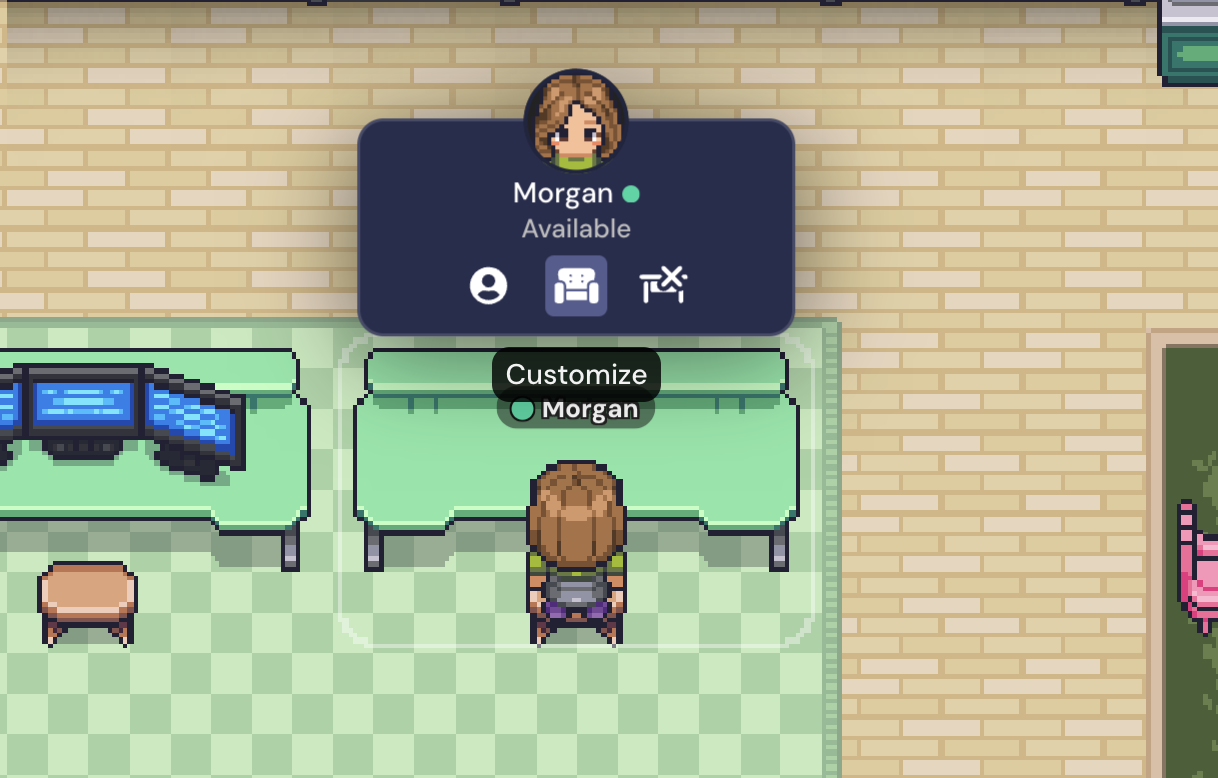
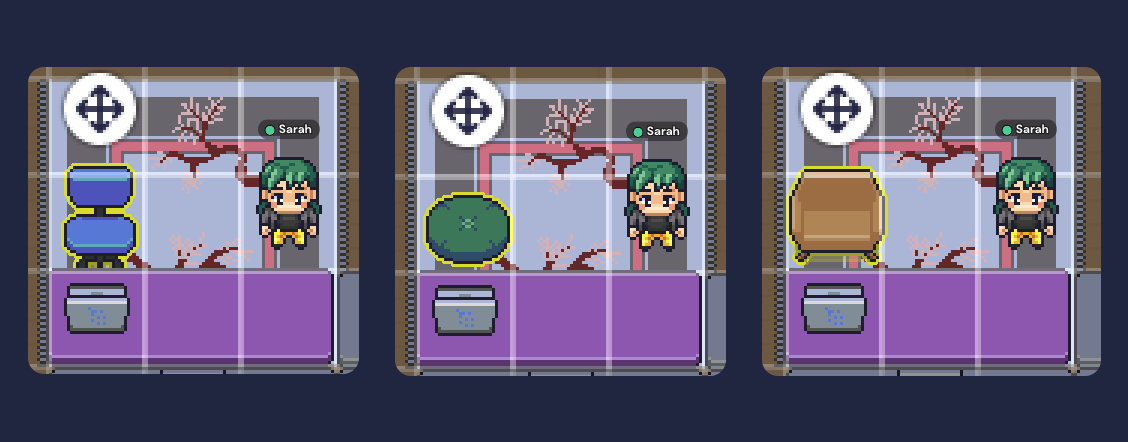
This allows you to easily add, remove, and swap out a rug, desk, chair, and computer. If you don't want one of these objects at your desk, select the 'x' to select nothing from that category. You can also use the Eraser tool at the bottom of the window to Erase objects from your desk.
If your Admins have allowed Build Tool access for Members (see User Roles and Permissions) you can further customize your desk with any object using the Build Tool. Some popular additions include coffee cups, books, and plants - the remote work essentials!
For help placing objects, you can hold the Command button to bring the grid into focus and snap objects to it.
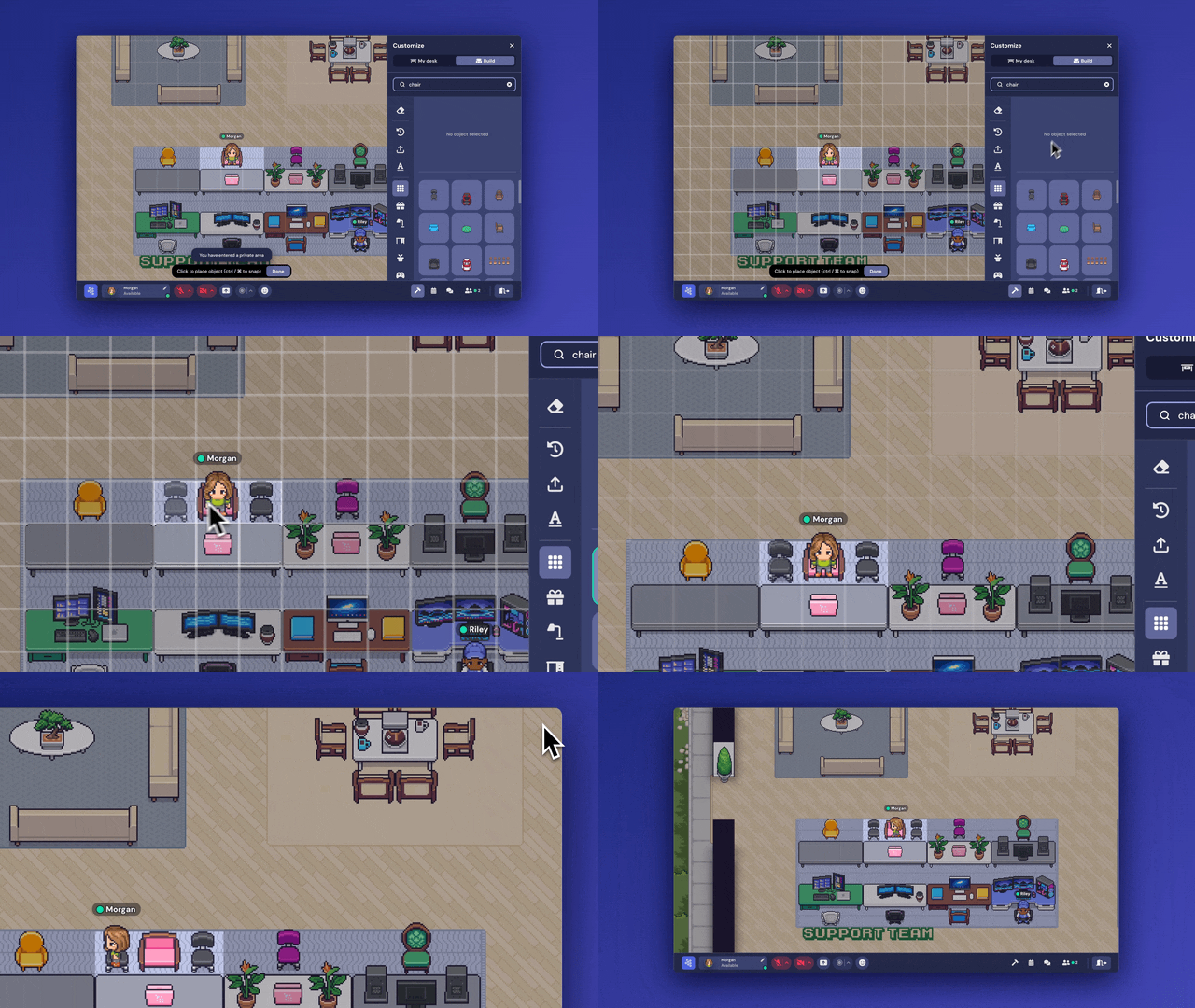
As you place objects at your desk, start from the bottom up and back to front. Imagine that you’re laying each object on top of the others. For example, if you want it to look like an object is in front of another, you’ll need to place the back object first.
Using Your Desk
Your desk gives you a personal place to sit in between meetings and conversations.
When you’re at your desk, it’s easy for colleagues to see your availability status to know at a glance whether you’re free for a chat or heads down working. (Just like in a real office!)
Beyond the sense of presence, you can use desks in Gather for:
Quick conversations - just walk up to each other when you’re free!
Scheduled meetings - you’ll see your desk as a meeting location option.
Leaving notes / gifts - a great async way to connect with each other.
Focused work time - turn on Busy or Do Not Disturb mode to show that you’re heads down but online working.
Moving to a New Desk
To switch desks, you’ll need to unclaim your current one first.
To do this, hover over your desk and click Unclaim.
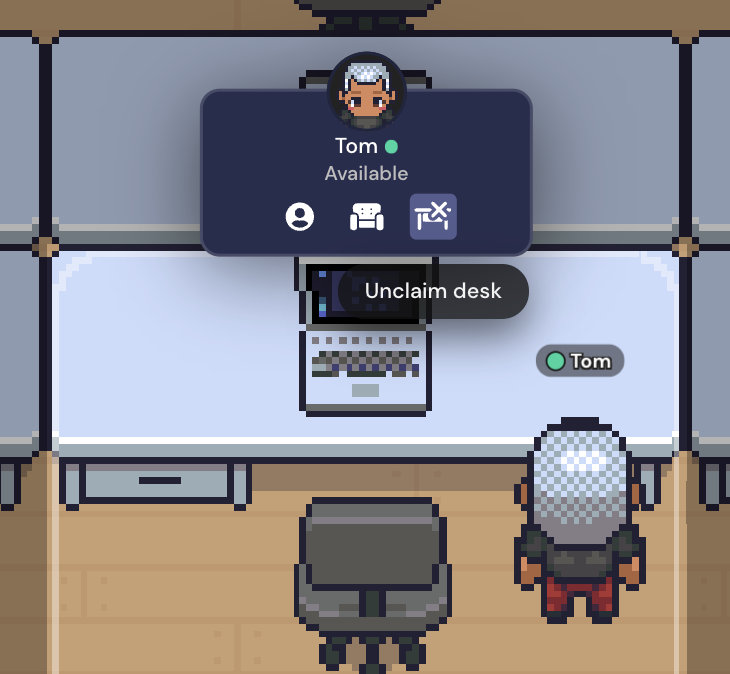
Once you've unclaimed your previous desk, you're free to claim any available desk in the office. We hope you like your new seat!
When you unclaim your desk and claim a new one, your desk customizations will not move with you. You’ll need to redecorate your workspace, so make sure you actually want to move before unclaiming.
To submit a bug report or share feedback:
Open the Main Menu and select ‘Report issue / bug’
Or email support@gather.town