Set Desktop Browser and System Permissions
Last updated: January 26, 2026
Gather must request permission to use your microphone, camera, and to record screens for screen sharing. This guide will explain how to check your system and browser settings to ensure a smooth experience.
The best way to use Gather is with our Desktop App. If you're using a desktop browser, we recommend using the latest version of Google Chrome. Learn more about our Browser Support Policy here.
Chrome Settings
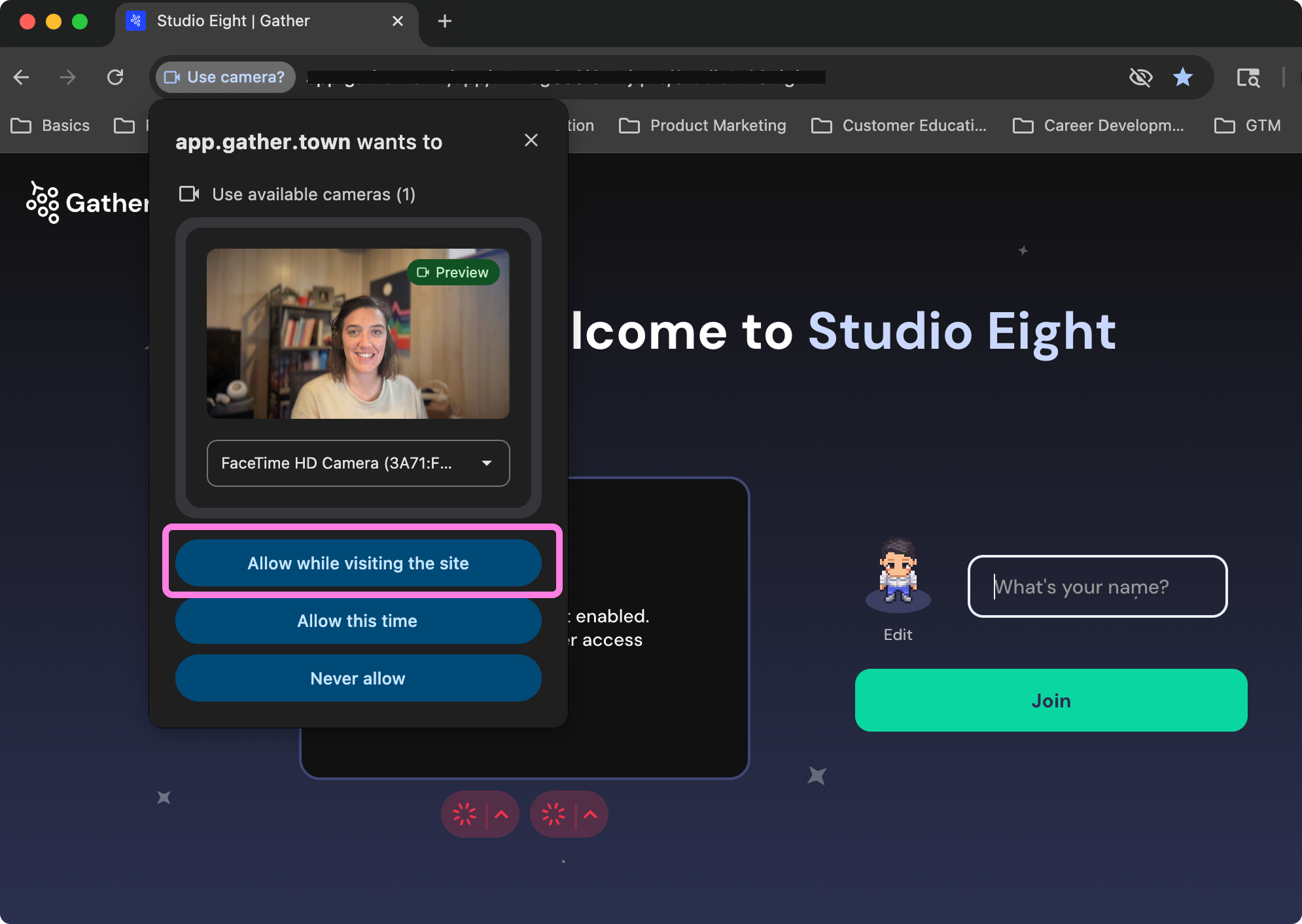
When you first enter a Gather workspace in Chrome (or if you've cleared your Chrome history), you'll see a pop-up asking for camera and microphone permissions.
Select Allow while visiting this site to allow Gather to access your microphone and camera every time you enter your workspace.
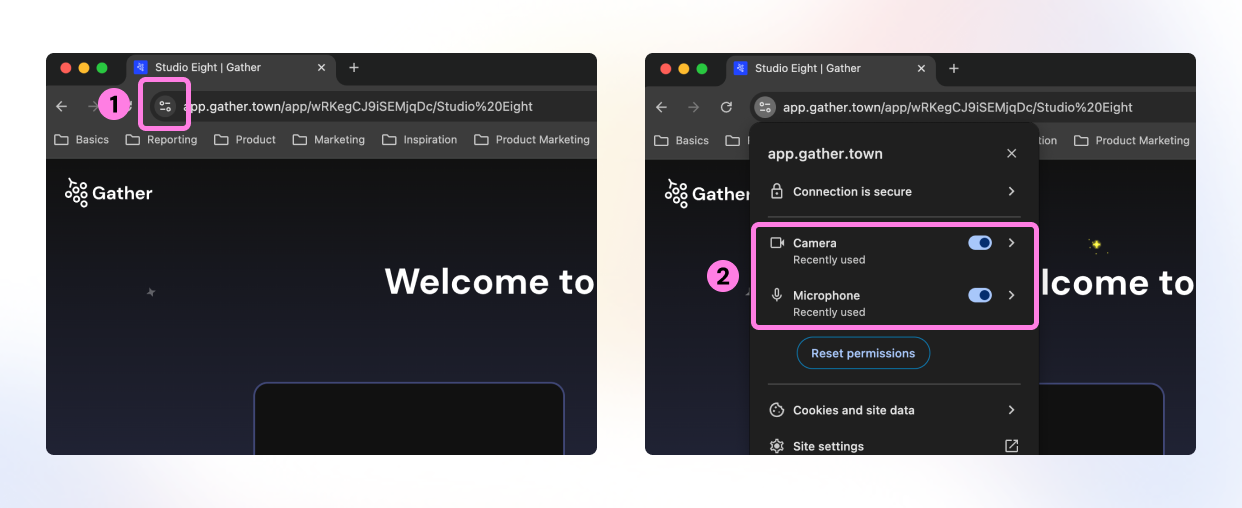
To view or change your Chrome permissions, click the icon to the left of the URL. Here you can toggle camera and microphone access on/off.
Firefox Settings
When you first enter Gather in Firefox (or if you've cleared your Firefox history), you will see a pop-up asking for camera and microphone access permissions. Select Allow to provide the best experience in Gather.
If you block Gather from accessing your camera or microphone in Firefox, you will see camera and mic icons with slashes through them in the URL bar to indicate that you have denied the site access. You can select these to change your preferences.
Safari Settings
Safari will prompt you for camera and microphone permissions when you first log into a space.
Select Allow to permit Gather to use your microphone and to use your camera.
- If you select Don't Allow and want to change the setting, refresh the page and try again.
- If you select Never for This Website, you can change the setting in your Safari Preferences.
In the Safari menu, select Preferences, and select the Websites tab. Scroll down to Camera and Microphone. Find app.gather.town on the list of websites to the right, then set the drop down menu to Allow (or Ask, if you wish to be prompted every time).
Mac Settings
When you update the Gather 1.0 Desktop App to version 1.35.0, it will re-prompt for microphone, camera, and screenshare permissions after installation, due to a security update.
Open System Preferences and select Privacy & Security.
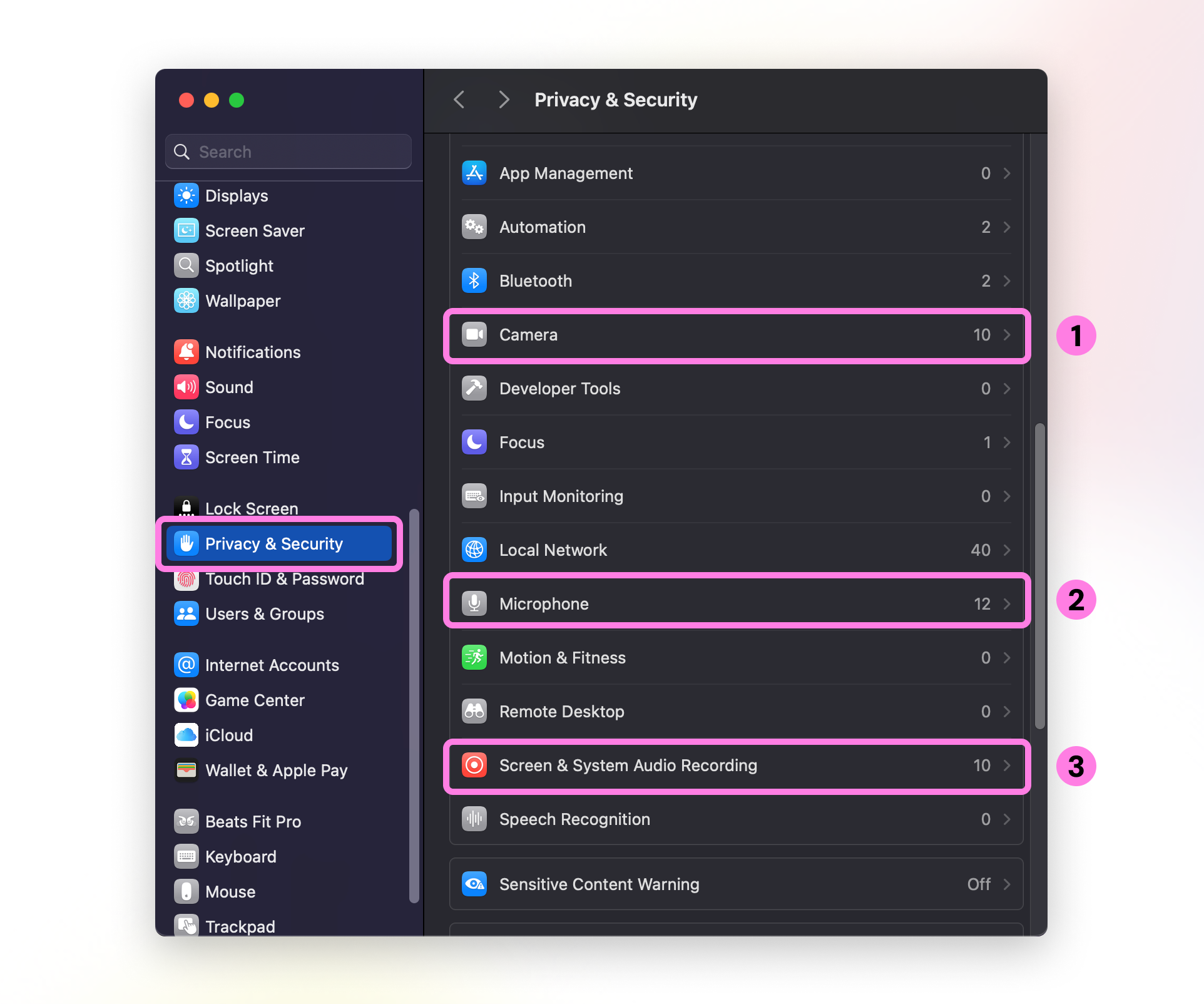
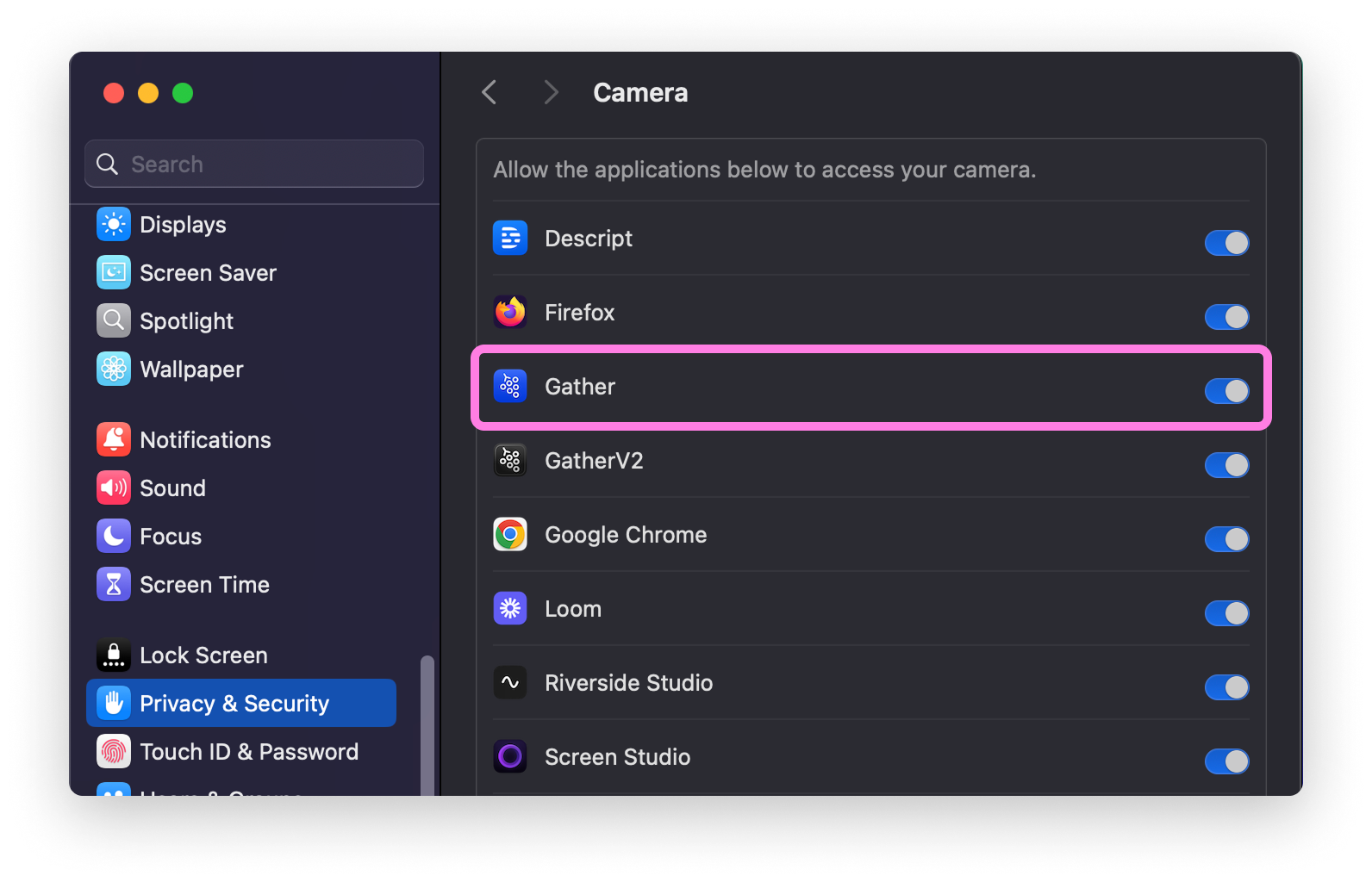
Check Camera, Microphone, and Screen & System Audio Recording to see if the Gather Desktop App or your browser has been granted permission.
For more assistance, please refer to these instructions from Apple for setting permissions on an Apple Mac.
Reset Permissions
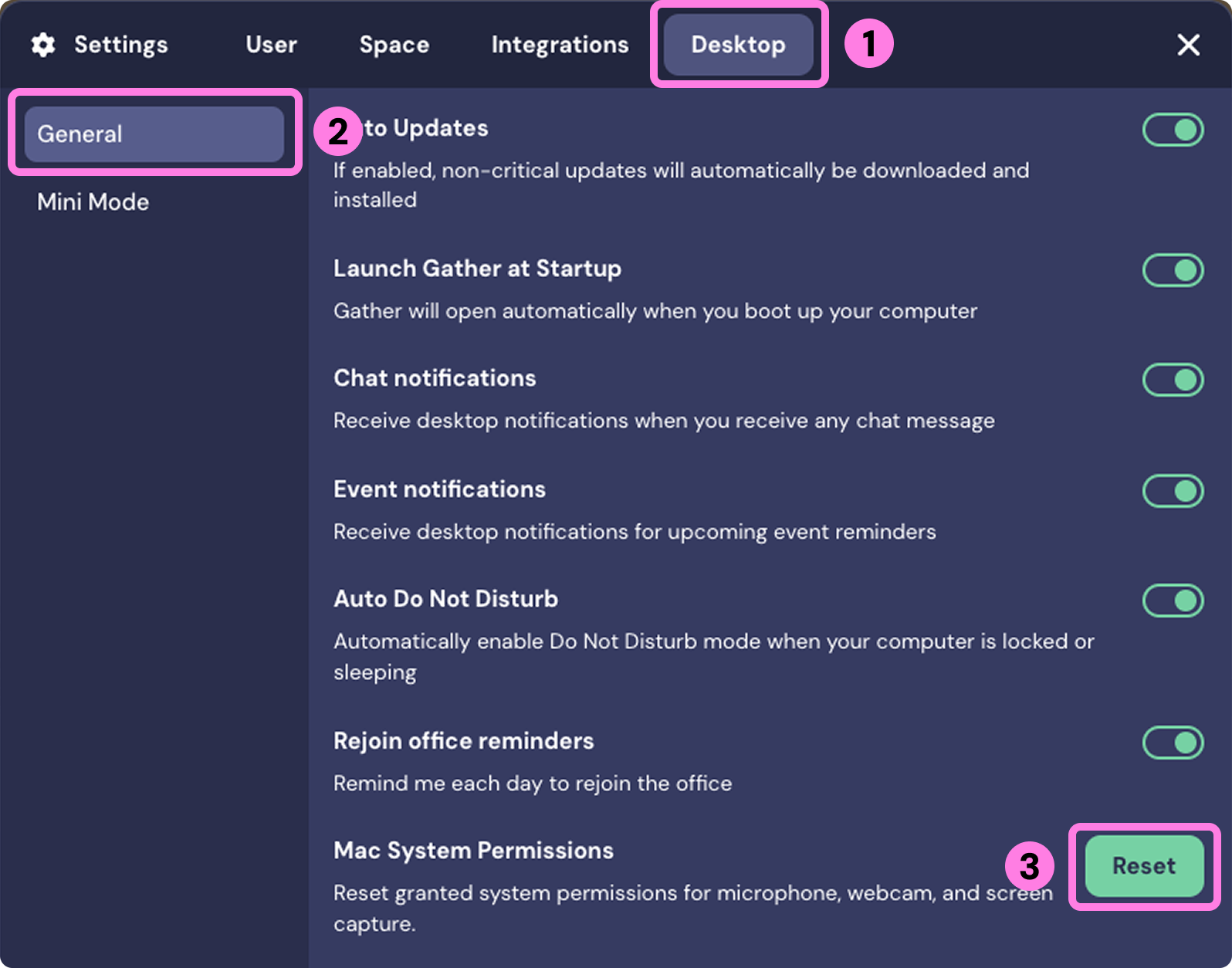
If you're having trouble granting permissions for the camera, microphone, or screen sharing, try resetting the permissions.
To reset permissions:
- Open the Main Menu (Gather logo)
- Go to Settings > Desktop > General > Mac System Permissions
- Click Reset
You can also reset permissions from the bottom of the "Enable permissions" modal.
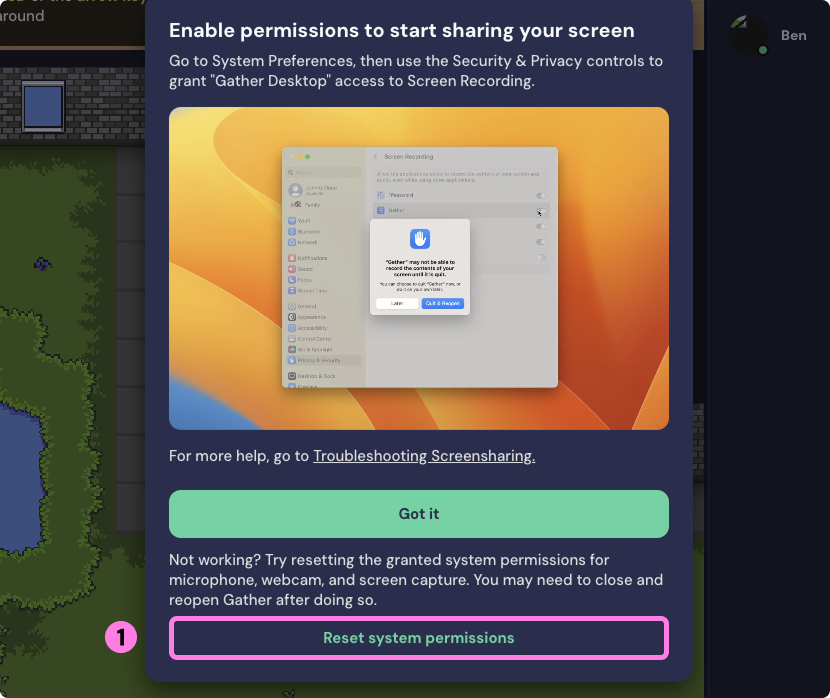
If permissions are still unsuccessful, try manually removing and re-adding Gather directly within Mac System Preferences. Follow the steps above but click the toggle to remove Gather, and then re-add it.
Windows Settings
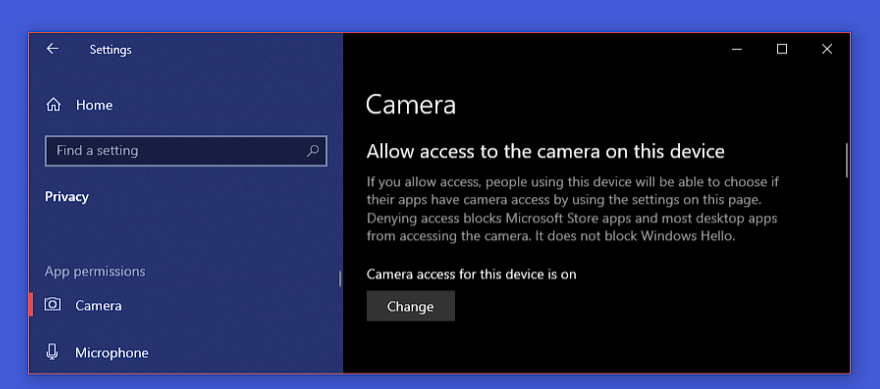
Go to Start > Settings > Privacy. In the App Permissions column on the left, click Camera or Microphone. The steps will be the same for both.
First, make sure you allow access to the camera/microphone on your device.
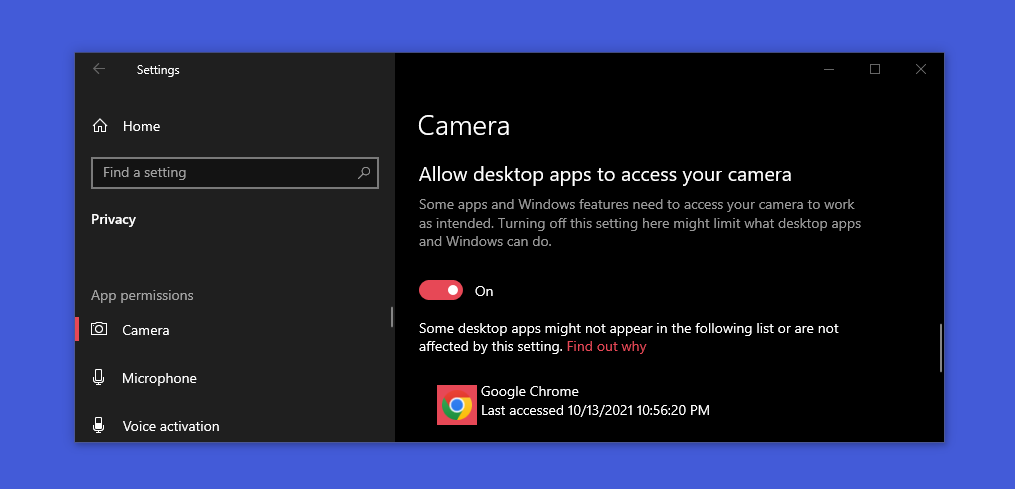
Next, scroll down to Allow desktop apps to access your camera/microphone. Make sure this is toggled On and that you can see either the Gather Desktop App or the browser you're using to access Gather.
For more assistance, please refer to these instructions from Microsoft for setting permissions on a Windows PC.