Shut Down or Delete Your Space
Last updated: January 26, 2026
If you no longer want a space on Gather to be active, you can temporarily shut it down or permanently delete it.
In order to shut down or delete a space, you must be an Admin.
Shut Down a Space
This option allows you to temporarily remove everyone from a space and prevent them from entering until it is re-opened.
To shut down a space:
- Open the Main Menu (with the Gather logo) in the bottom navigation bar and click Settings
- Go to Space > Advanced > Space Dashboard
- From the Space Dashboard, select Shut Down or Delete
- Select Shut Down
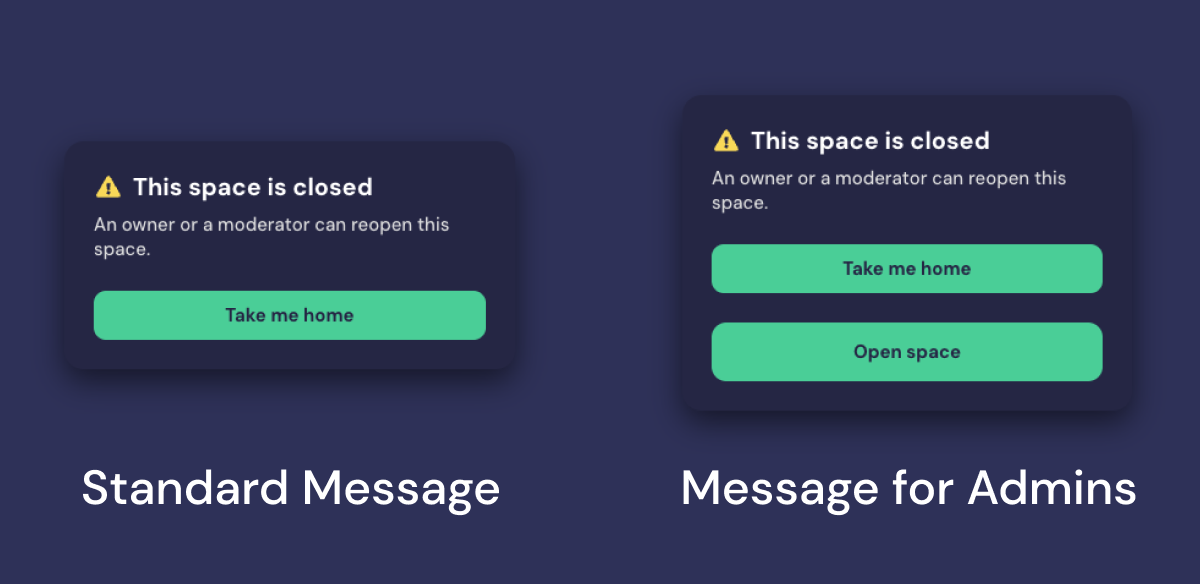
Once a space is shut down, anyone who tries to enter it will see a notice that it is closed. Owners can re-open it by clicking the Open space button.
Delete a Space
This option allows you to permanently delete a space, including any uploaded assets.
In order to delete a space, you must first cancel any ongoing subscriptions, upcoming reservations, or open invoices.
Once a Space is deleted, there is no way to retrieve it. Please proceed with caution!
To delete a space:
- Open the Main Menu (with the Gather logo) in the bottom navigation bar and click Settings
- Go to Space > Advanced > Space Dashboard
- From the Space Dashboard, select Shut Down or Delete
- Select Delete Space
- Review the warning and click Delete this space