Report a Bug
Last updated: May 28, 2026
To report a bug in Gather 1.0, open the Main Menu (Gather logo), then select Report issue / bug.
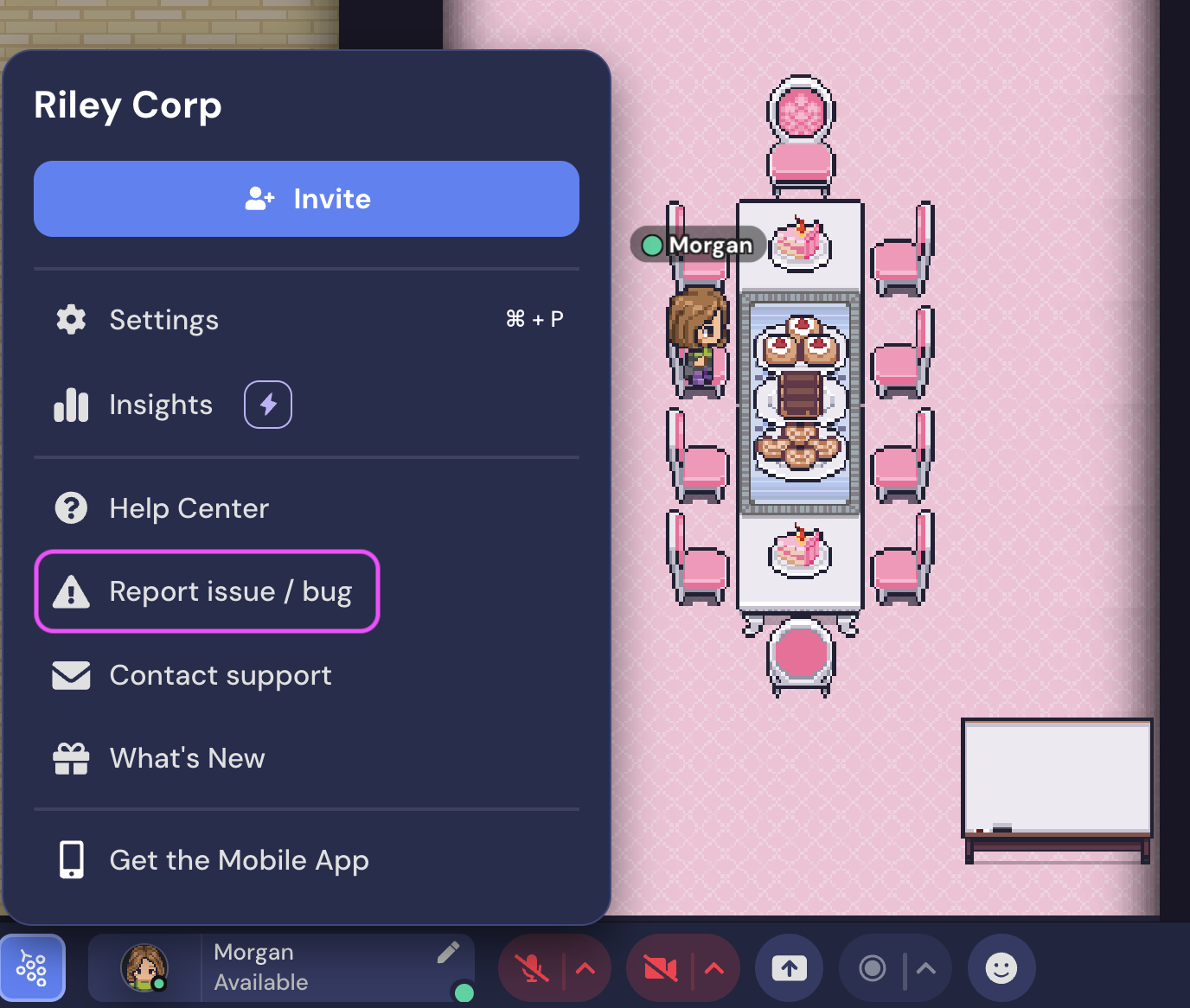
A new window will open. Please provide your name, email address, and the reason for submitting a report. In the description, please share:
What you were trying to do
What happened in the app
Any troubleshooting steps you tried
What browser (Chrome, Firefox, Safari, etc.) and/or operating system (Windows, Mac, Linux) you're using
Contact Support
To send a more detailed bug report, including screenshots or console log files, please email us at support@gather.town.
View and Save Console Log
Sometimes, Gather may be unable to load content in your browser. To help us troubleshoot this issue, the Gather Support Team may ask you to send a console log from the webpage where the issue occurs.
Create a Console Log
To open the developer console in Chrome: use the keyboard shortcut Ctrl+Shift+J on Windows or Cmd+Option+J on Mac.
To open the developer console in Firefox: use the keyboard shortcut Ctrl+Shift+K on Windows or Cmd+Option+K on Mac.
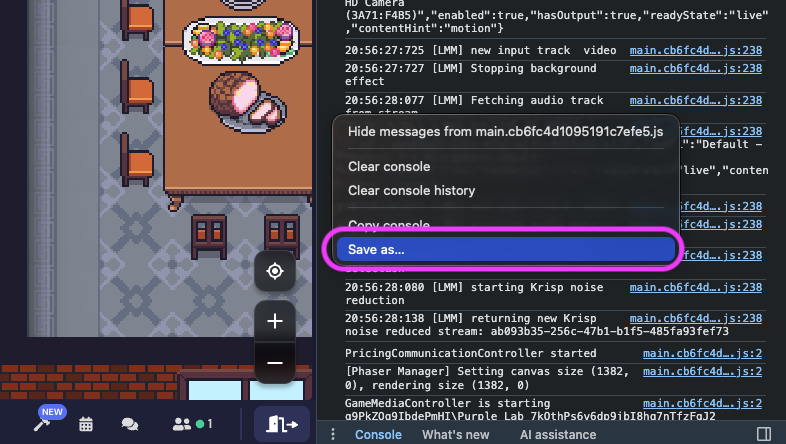
A pane will open in the browser with the Console tab active. Right-click anywhere in the Console pane. Select Save as to produce a .log file, which is the same console information in text form.
Note: No personal information is included with console logs.
Attach the log file to your email when replying to the Gather Support Team.
To submit a bug report or share feedback:
Open the Main Menu and select ‘Report issue / bug’
Or email support@gather.town