Spotlight a Speaker for Presentations
Last updated: May 28, 2026
Spotlighting in Gather 1.0 lets you address everyone in the room at once, even if they're in a Private Area. It's perfect for presentations, team-wide announcements, and speaking events.
How it Works
When you're Spotlighting, your video and screen preview (if you're screen sharing) will have an orange Spotlight label and be pinned to the top of the video carousel.
You can see the participants you're broadcasting to, as long as they have their video on.
You can hear people who are within the standard connection range (within 5 tiles).
If you end the Spotlight or walk off a Spotlight tile, you will no longer be seen and heard by everyone in the room.
Participants can click on the spotlighted person's screen share or video screen to enlarge the view. Collapsing the expanded Chat or Participant panel will further enlarge the view.
How to Spotlight
There are two ways to spotlight someone in Gather 1.0. Multiple people can Spotlight at the same time.
1. Walk onto a Spotlight Tile
Spotlight Tiles create a spot that anyone can walk on to instantly Spotlight to everyone in the space. This is best for events or presentations where multiple people take turns speaking to the entire room.
Read more here:📄 Spotlight Tiles
2. Spotlight Yourself or Someone Else
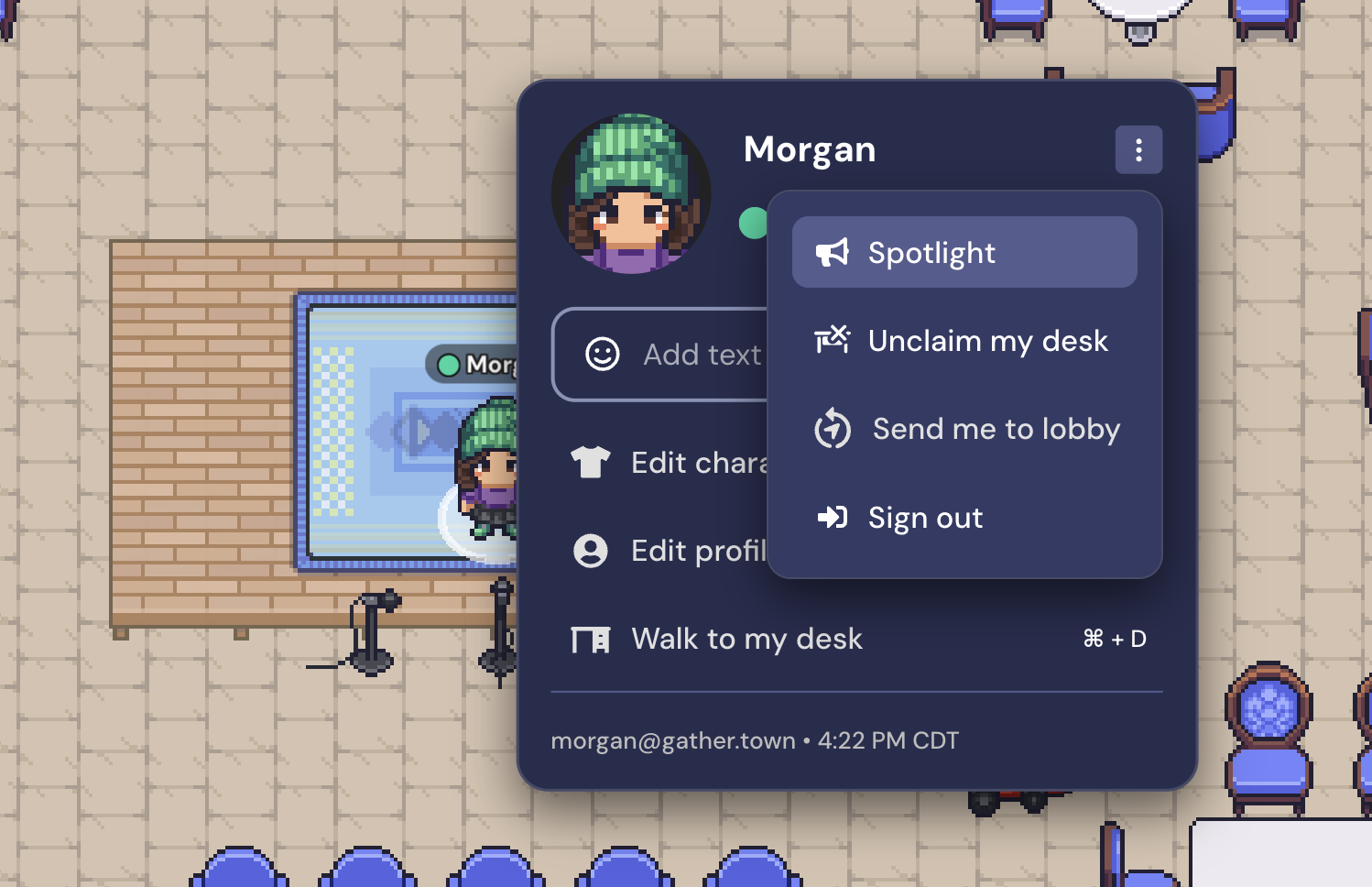
Alternatively, you can skip the tile and Spotlight yourself or someone else in the space. Click the presenter's avatar, select the dots in the upper-right corner, then click Spotlight.
You must be an Admin or Mod to Spotlight another user.
If a moderator has spotlighted you, you can click on your name in the Participants panel and select Unspotlight.
Spotlight Performance Recommendations
Spotlight performance may vary based on your team's network connections, system settings, and devices. The following recommendations are loose guidelines to help you have the best experience:
If you're sharing your screen, Spotlight works best for up to 150 people
If you're sharing a combination of audio and video, Spotlight works best for up to 250 people
If you're sharing audio only, Spotlight works for up to 500 people
Troubleshooting Spotlight Issues
If you have a large group (more than about 100 participants), or are hosting an event and reach your Space capacity, some participants may have issues with their own A/V stream or with the spotlighted speaker's.
Gather has built-in warnings if the spotlighted speaker has reached their maximum broadcast capacity. The speaker will see a warning message: "Sharing A/V with too many people. Try turning off your video or screen." The speaker can reach more participants by turning off their own video, audio, screen share, or some combination thereof.
If the spotlighted speaker reaches the broadcast capacity, guests who cannot connect to the speaker's stream will see a message on the spotlighted speaker's video preview: "Sharing A/V with too many people."
A simple way to improve most meetings is to create smaller private areas around the Room so that participants can limit who they share their A/V with while they are connected to the spotlighted speaker. This will not increase the number of participants the spotlighted speaker can reach, but it will improve the overall experience for individuals, who will experience less strain on their machines.
To submit a bug report or share feedback:
Open the Main Menu and select ‘Report issue / bug’
Or email support@gather.town