Accessibility Best Practices for Inclusive Space Design
Last updated: June 4, 2026
The following list of best practices is based on collaborative conversations with various event hosts about creating more accessible and intuitive Gather 1.0 spaces.
Personal Settings
In User Settings, you'll find options to fine-tune your Gather experience. Go to User Settings > Accessibility to reduce motion on the screen and change font sizes.
Disable Smart Zoom
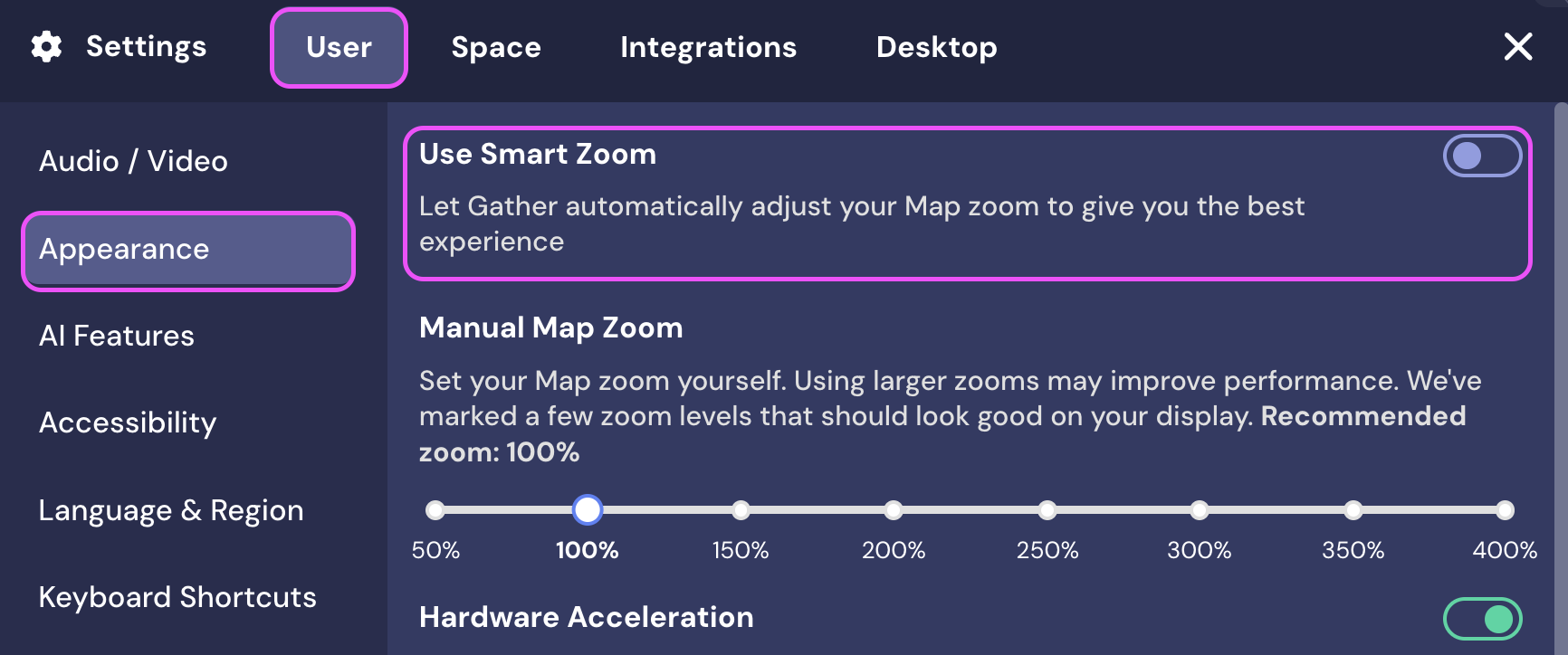
Some users, especially those with low vision, may prefer to view a zoomed-in version of the map. Disabling Smart Zoom will allow users to zoom in incrementally.
To disable Smart Zoom, go to Settings > User > Appearance > Use Smart Zoom.
Space Design Best Practices
Add wayfinding instructions, text labels, and custom objects to introduce people to your space.
Provide clearly designated areas for people who may need interpreters or who would like some downtime.
Ensure you have clearly identified support staff using iconography (see below). These staff can help guests find their way around the space, connect manual signers with interpreters, or assist with any other questions or needs.
Provide multiple ways for guests to get support (e.g., via Gather chat, at designated help areas within the space, using interactive objects, including instructions like PDFs or videos, etc.)
Show users how to use the Request to Lead and Follow features, how to disable Smart Zoom, and how to use Chrome's live captioning.
Select objects with high color contrast that are easily distinguished from the background (see tools below).
Test your Space with colorblind filters (see tools below).
Do not rely on color alone to convey meaning.
Add Instructions Within Your Space
Make your Space easier to navigate by adding wayfinder symbols, interactive objects (e.g., signs or bulletin boards), and instructions, especially in welcome or lobby areas where guests first arrive.
You can also create a legend explaining key symbols in the Space. Use those symbols to signify specific people, places, or topics.
Make sure the objects and text you add offer high color contrast, especially against the background, and are visible to users with different types of colorblindness. You can check if your colors pass accessibility guidelines using some of the tools we list at the end of this article.
When you're using symbols, make sure color alone does not signify meaning. For example, if you want to use different colors of rugs to indicate different types of areas, distinguish them by pattern, as well.
If you need signs in a color other than black, we recommend uploading custom objects to support high color contrast.
Add Icons to Your Name or Status
Participants in the space can add emojis to their name or status to provide more information about themselves. This is a great practice for large events—encourage speakers, guests, sponsors, etc. to use a chosen symbol in their name or status for quick visual cues of their role in the Space. Make sure to provide a legend so that participants know what each symbol means (e.g., ⭐ could mean staff; 🎤 = speaker; 🦻= Deaf; 👋 = interpreter).
You can add an emoji directly to your name using the emoji picker native to your operating system. Use Ctrl/⌘ + space for Mac, or use the Windows key + period (.) for Windows. Then search for the emoji you wish to add to your name! This symbol will show up next to your name in the Space.
Add a symbol to your name using your machine's built-in emoji picker. (Windows key + period for Windows or cmd + ctrl + space for Mac)
You can also use our emoji picker and add a text status that will display under your name in the Participants panel. (The status does not show up next to your character in the Space; you just see the status in the Participants panel.)
Add emojis and text to your name or status to for visuals cues of who's who in a Space.
Create Interpreter Areas
For keynote speeches, spotlight interpreters so that sign language or foreign-language interpreters appear as one of the prioritized videos in the video carousel. Participants can click on the interpreter's individual video to view in the full screen mode.
Create private areas throughout your Space to allow participants to focus on interpreters. These areas are also helpful for neurodivergent folks (or anyone, really) to take a break from the sights and sounds of the event.
This keynote room features a designated area for interpreters. The interpreter seats are spotlighted so that their videos are prioritized for those in the Space. This area can be turned into a private area for participants to focus specifically on the interpreters.
Use the Request to Lead Feature
The Request to Lead and Follow features are great for introducing guests to a Space. Request to Lead allows you to ask to lead another person. If they accept, their character will automatically find you in the Space and will attach to you. This means the person you're leading does not need to navigate at all, and your audio and video will remain connected.
Similarly, the Follow feature lets a person attach to someone and follow them through the Space without navigating. These features may be especially helpful for guests who are neurodivergent, deaf, or blind/low vision so that leaders can lead them through the Space. If an interpreter follows a signing deaf participant, they can use their hands to sign instead of focusing on the keyboard to navigate.
Enable Live Captioning Tools
Chrome natively supports live captioning of audio streams, which WebRTC connects to automatically, so you can have live captioning for audio in Gather.
To enable live captions, open Chrome's Settings. In the Accessibility section under Advanced, toggle on Live Caption.
Open Chrome Settings and select the Advanced section. Under Accessibility, toggle on Live Caption.
At the bottom of your Gather Space, you will see a live captioning of all audio input. Some of the tools listed below offer additional captioning support.
If you're embedding YouTube videos and need player controls, edit the video URL and embed it as a website. See our article on Embedding Videos for complete instructions.
Use Custom Spawn Locations in Private Areas
One option to assist a blind or low-vision guest, or someone who doesn't care for the 2-D map experience, is to create a Custom Spawn Location. When you give the guest the link to the Spawn location, they will be teleported directly into a specific spot in an event Space (e.g., a couch or seating area). This provides the guest with the opportunity to be in the Space and hear the speaker's audio. If you have an event with multiple speakers or rooms, you can create a Custom Spawn Location for each event time or area.
Keep in mind that if you have multiple guests who want to use this feature, you may want to create separate Custom Spawn Locations for each guest. You could also make each spawn location a Private tile or a Private Area so that the guest only hears the spotlighted speaker or the people in the Private Area with them.
Use Third-Party Tools
Want more captioning support?
Webcaptioner is a free, online live captioning program for those not using Chrome.
Use OBS's integration with Webcaptioner. OBS is a video capturing software that lets you alter your outgoing video feed.
Use PowerPoint's Live Captioning Tool, which supports a greater number of languages.
Need to check your colors?
Use Coolors.co to plug in your foreground and background colors to check color contrast.
Add the Colorblindly browser extension or use colorblindness filters on your Space.
Have a blind or low vision guest?
Use a third-party calling tool so that the guest can connect with a tool they're most comfortable with (e.g., Zoom). Then have your support staff in Gather walk through the Space and the event, narrating the experience to the guest in the third-party platform and responding to their questions.
To submit a bug report or share feedback:
Open the Main Menu and select ‘Report issue / bug’
Or email support@gather.town